First, let's define what PING is. Ping is a special utility capable of checking the integrity of a connection. It is based on TCP and IP nodes. These protocols define how a computer or server connects to the wider network. The commands that let you check an IP address and trace a route help you determine whether a server is reachable, as well as its state at the moment of connection.
The very notion of tracing is understood differently. Some say it is the data you receive, while traceroute is a program that helps determine the path (routing) that data takes across IP/TCP networks.
Simply put, we are going to run a trace together and ping a server from the Windows shell.
Windows CMD – finding and checking
You need to do the following, regardless of your software version:
- Start — All Programs — Accessories — Command Prompt;
- In the search box — type the same thing;
- Open the control panel — Run — and enter the command cmd.
Any of these methods will open a black window that looks like this:
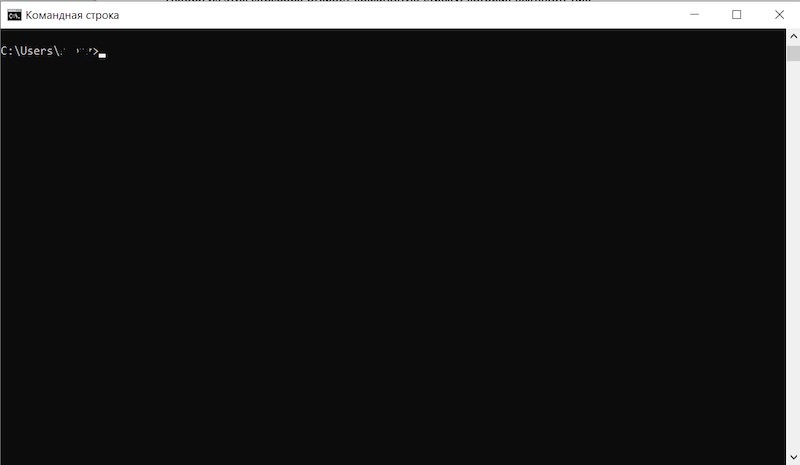
Once you have found out your IP (just type ipconfig at the prompt), the PING command is also available to you.
Do everything as shown in the screenshots.
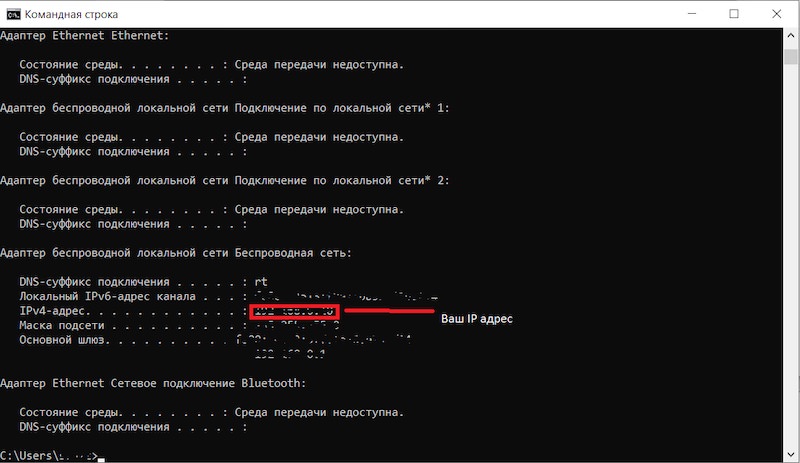
After entering IPCONFIG – capitals are not required — you get your IP address in the IPv4 line. You can copy it for convenience or memorize it, which is harder. Many people simply write it down on a piece of paper.
The command prompt always sends 4 packets. We can see that each packet carries 32 bits of data and takes 3 milliseconds each.
Everything is shown in the screenshot below.
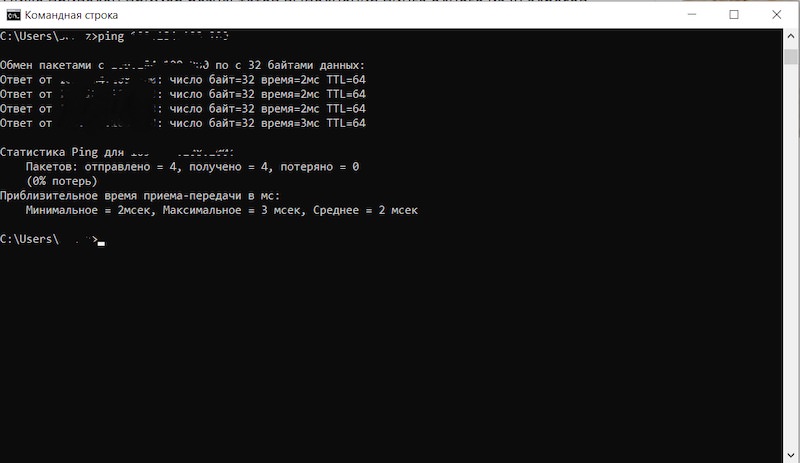
You can change the number of packets sent yourself by adding «-N» after «PING». Your command will then look like this:
ping -n (number of packets) IP-address
You can also change the number of bytes, and then your command will look like this:
ping -l (number of bytes) 22.11.33.444 (for example)
Unlike Windows, on Linux a manual IP check keeps running until you stop the process yourself. On Windows the same behavior can be achieved with the additional «-T» switch, and it looks like this:
ping -t some IP (for example)
The check is stopped by pressing Ctrl + C.
You have found out your IP address. You now have access to information about the speed of your computer's connection to the wider network.
Checking the route with tracert
Tracing shows us how fast our packets travel between the routers that sit on the network path from the computer sending the requests to the final (destination) server.
A trace often helps uncover a problem on the server side. Most experienced specialists, whenever they change DBMS code, check the trace constantly to pinpoint problems and measure how fast the data travels.
The tracert command shows the full network route to the specified destination. It looks like this (wikipedia.org was used as an example):
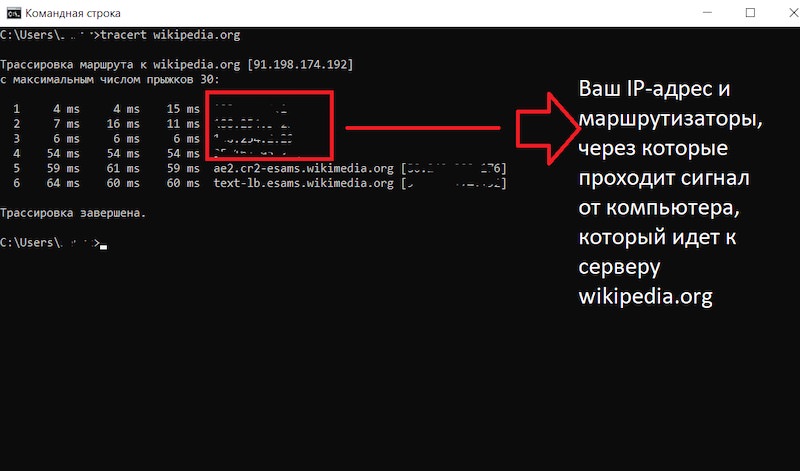
As we can see, the «tracert» command helps us see the number of intermediate routers, as well as the total time we have to wait.